Keep Using Your Desktop After the Course Ends
One convenient perk of DaDesktop is that attendees can seamlessly keep working on their training machine for practice once the course wraps up. Shortly before the course concludes, participants receive an email asking if they'd like to maintain access to their desktop afterwards.
Typically, each learner's course desktop is taken down a short while after the training ends. If you want to retain your desktop to continue working through the lab exercises, you have the option to clone it into a 'Standalone Desktop' for future use.
To proceed, go to your Course, find your desktop machine, and click the 'Use desktop after course' next to it.
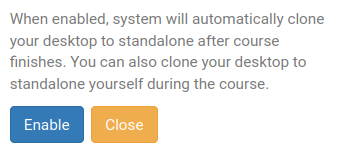
DaDesktop will then walk you through the straightforward steps and let you 'Enable' the process.
After enabling, you'll notice the following indicator beside your course machine:

When the course ends, you can get to your Standalone machine by selecting the Standalones menu at the top of your screen.
Any machines inactive for more than a month are scheduled for removal, but users receive a heads-up email ahead of time, giving plenty of notice should they wish to keep using their Standalone setups.
For more info on managing your Standalone machine's retention, check out this article.